|
|
|
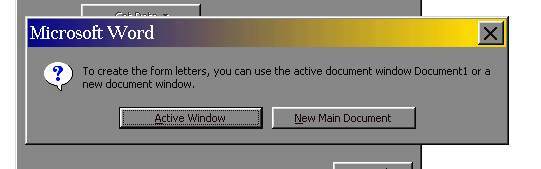
Mail Merge - part 2This is Word's way of saying we can use the document we have open right now, or create a new one. We're going to use the active window Document1, It's blank at the moment, but we'll see how to compose it in a few steps...
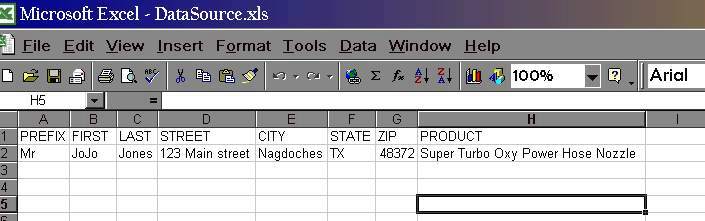
Next, we tell Word about our DATA SOURCE - remember, it's an existing Excel spreadsheet...it's a good idea to have your data source set up with the appropriate column headings, so Word will know what piece of data is what. Here's a shot of the spreadsheet:
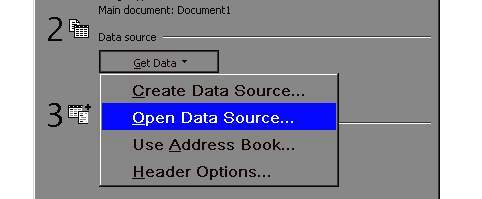
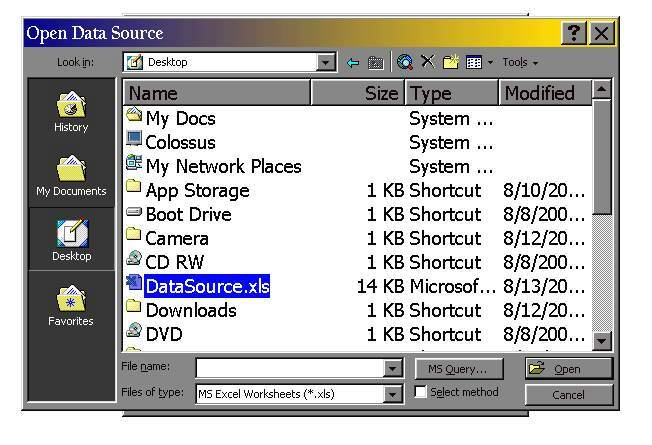
..so we select OPEN DATA SOURCE
and point to where ever this Excel spreadsheet is. Mine is on my desktop, but your's could be anywhere. You will have to know where your data source file is..I can't help you there.
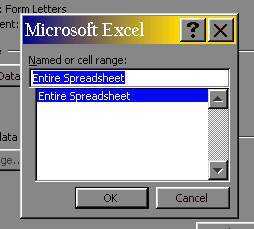
If there are different SHEETS in your workbook, you'll need to tell Word which sheet to use:
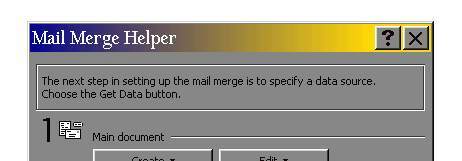
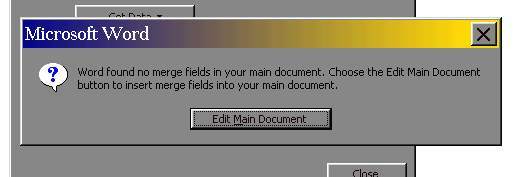
Next, because we have a blank document, Word tells us we need to edit this main document, and insert the merge fields where we want them:
And now it's on to the final step... Mail Merge Step 3
|