|
|
|
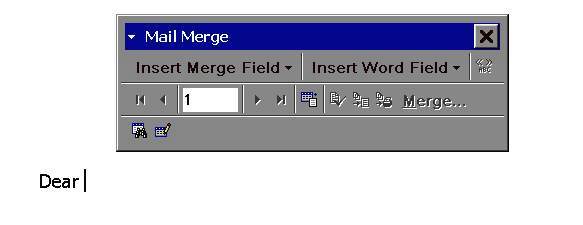
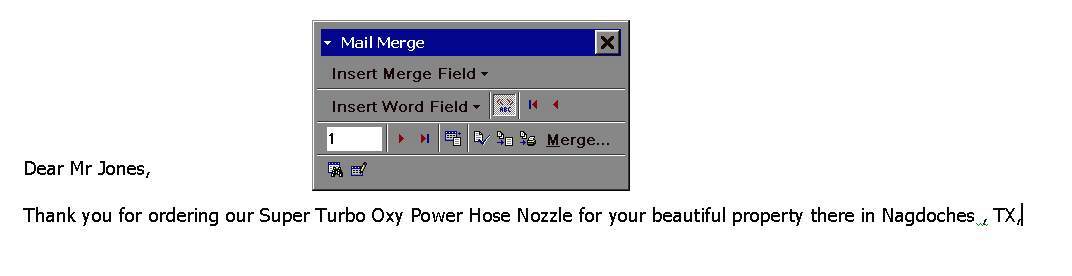
Mail Merge, Step 3We begin by creating our document, and then INSERTING a MERGE FIELD at the appropriate spot. Note the Mail Merge toolbar opens up
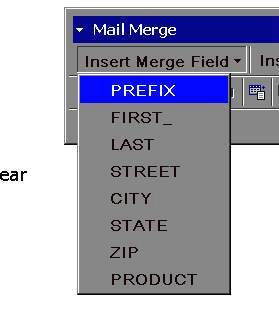
We want to insert the PREFIX here, ( "Mr. ") so we select that field:
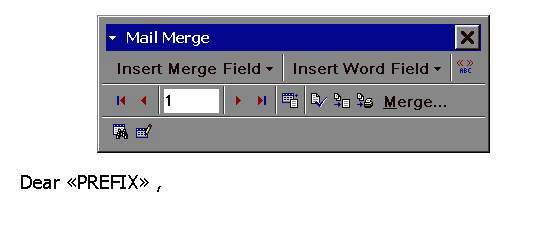
and Word sticks that Field code in our document:
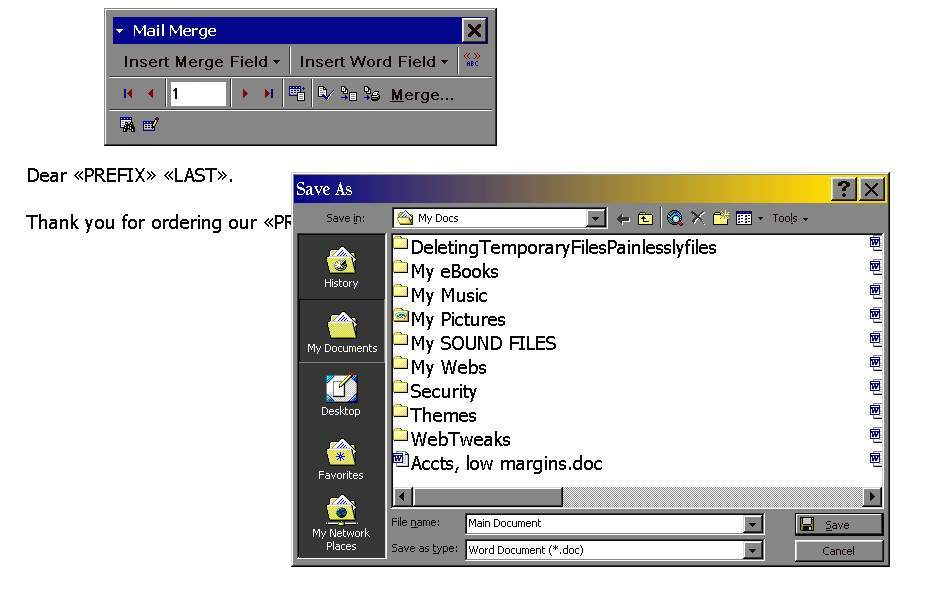
Then continue to create your document, inserting the field codes where you want:
SAVE your main document with the MERGE FIELDS, before you actually do the MERGE:
After you're done, just click "Merge" on the tool bar, and Word shows you what the document will look like:
If you have 20 lines or rows in your data source, you'll have a 20-page document, one page per person. Then just print the letters. It's also important to realize that you do NOT need to "Save" this merged document - just the MAIN document with the merge field codes. Back to Support Page Back to HOME I hope you find this little tutorial useful, and if you have any questions, feel free to contact me. |