|
So you'd like to put a TAB
control on a form, Part Two
|
Now that you have your tab
control on the form, and are happy with the size and position, it's
time to start putting field labels and text boxes on the pages...see
as I select the ID field, and drag it to the Page 1 tab |
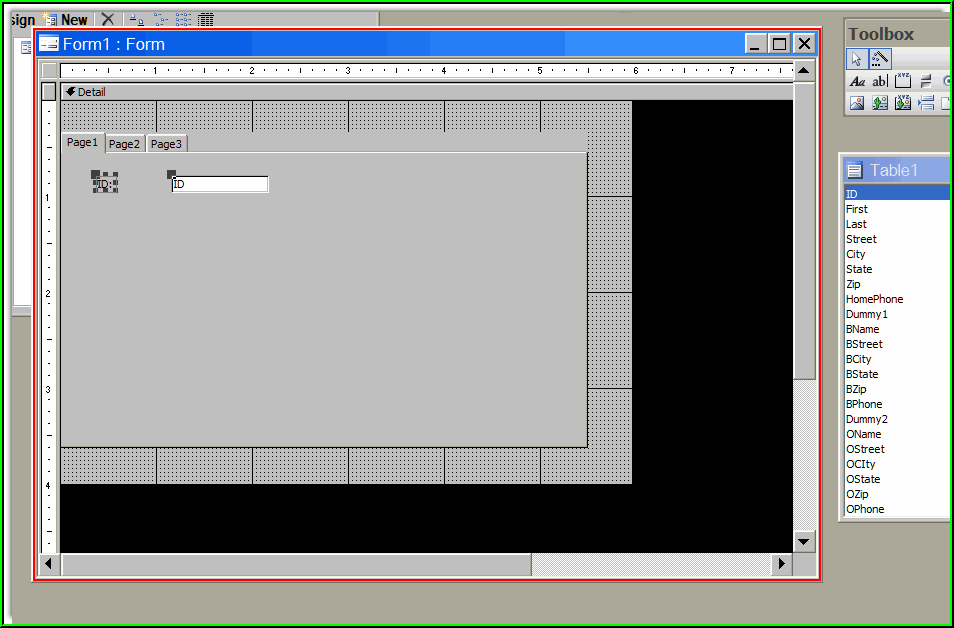
| You can set up your pages
any way you like. I just dragged the fields I wanted to the Page 1
tab, and this is how it looked when I was finished: |
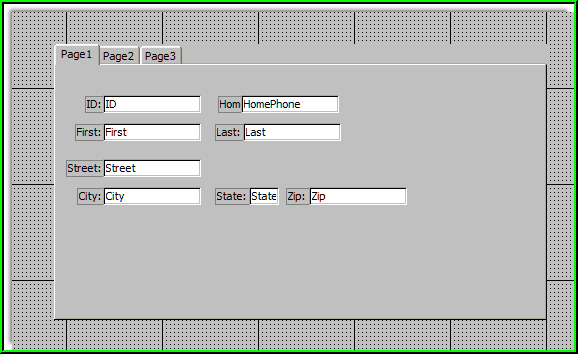
| There's no hard and fast
rule about how you set the fields and labels on your pages - just
keep it clear and appropriate for the task..user interaction is
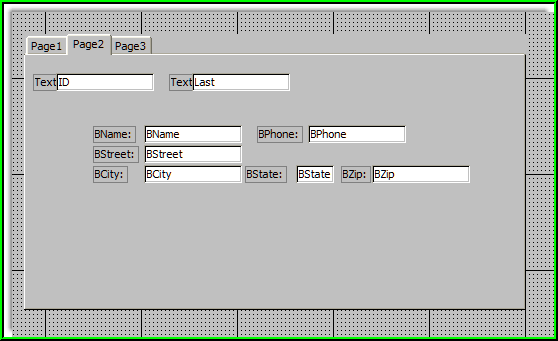
valuable here, as well. After Page 1 was done, I selected the Page 2
tab, and populated it as well: |
|
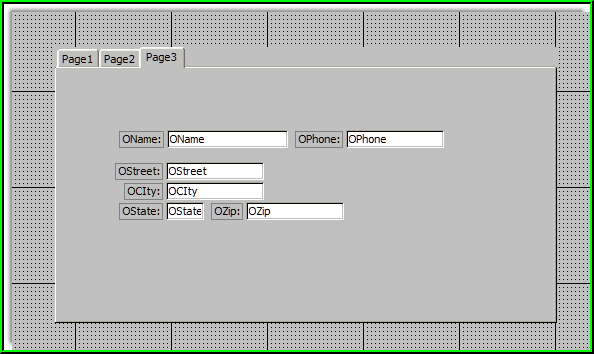
And then the same for Page 3
- as you see, there's no magic here. Designing the layout of a tab
page is just like designing a standard form. You can set format,
colors, font sizes, alignment and all the other 'goodies', just like
you can on a standard form. |
|
Now, let's fix those dumb
"Page 1" page tab headers.. Since the pages are individual objects
within the tab control as a whole, we'll adjust their properties by
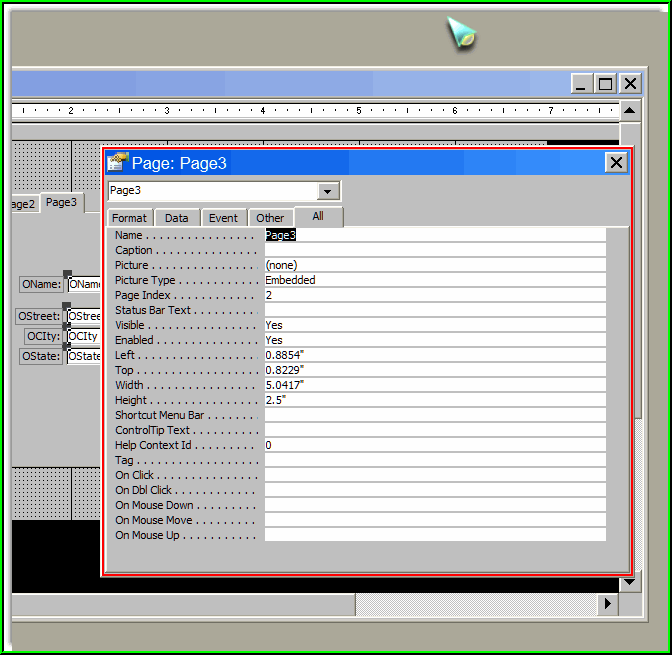
right-clicking the page tab header. The
NAME of the page can be anything you like... |
|
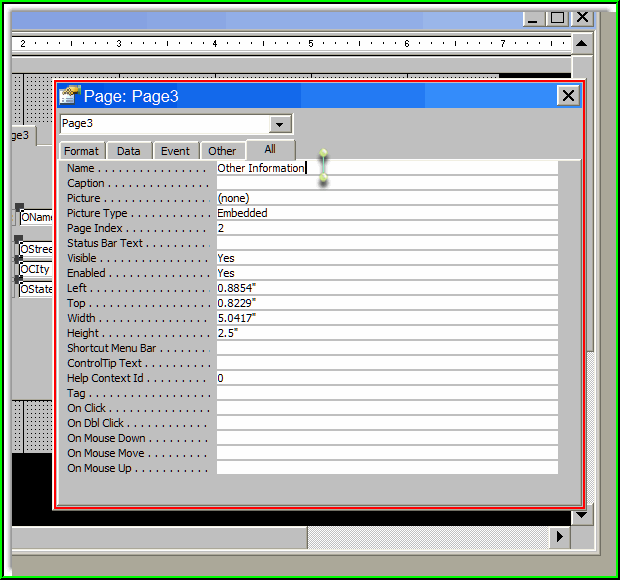
I rather cunningly named the
page that contains the "other" information, "Other
Information"...how crafty.. |
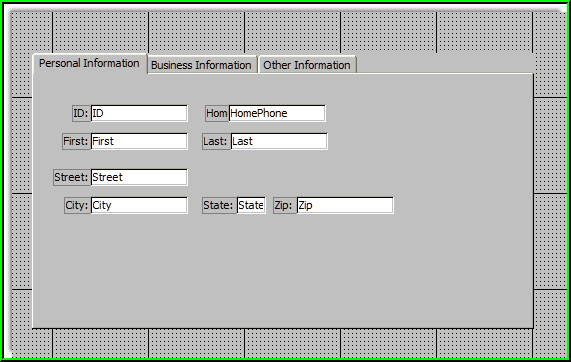
| Here's the finished tab, with pages renamed
and all fields placed where I wanted them... |
On to Part Three
|
