|
So you'd like to put a TAB
control on a form, Part Three
|
So that's the basic tab
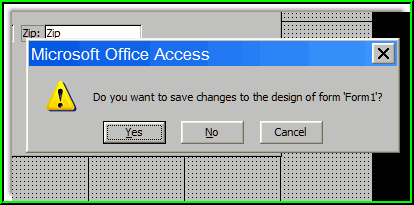
control - not so difficult now, was it? Save the form... |
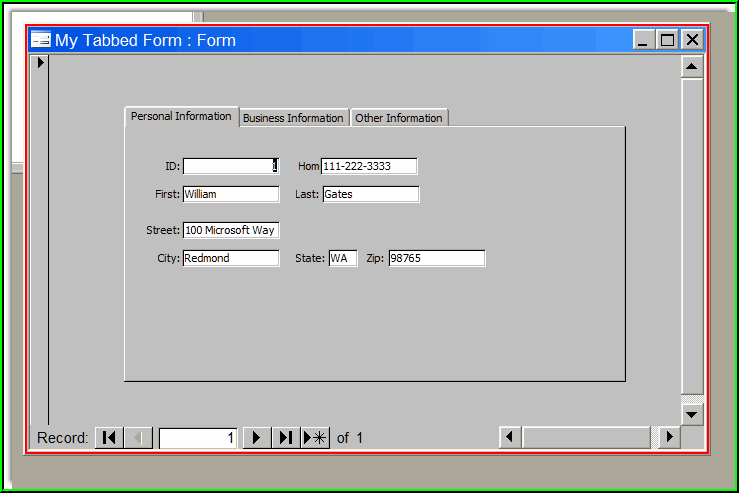
| And here it is in form
view: |
| Now, the only thing you'll
notice is that sometimes, you'll want to carry basic information
over to each of the tab pages - such as the person's name or ID
number or whatever - so when you're viewing the business, or other
information tabs, you continue to see the visual clue of the
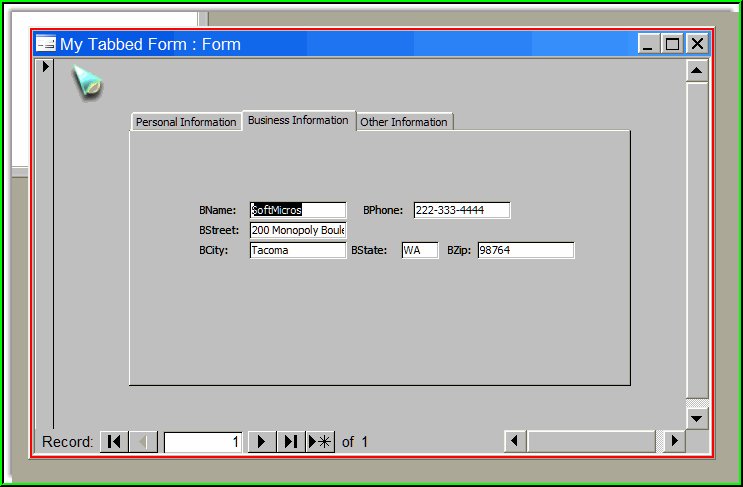
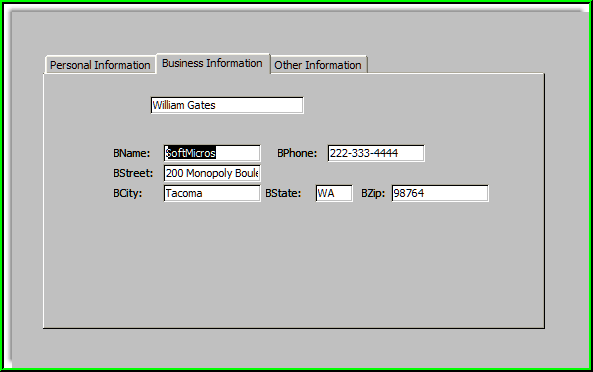
person's name. As you'll see, our friend Bill Gates' name is not on
these other two tabs. |
|
You might think that you can
just drag the relevant fields over to page 2 and page 3 as you go
along, just like you placed them on Page 1, but Access has a rather
odd behavior if you do that - It thinks the 'extra' references to,
in this case, ID and First and Last Name, are for ADDITIONAL, NEW
RECORDS! So you have to get a little funky here. You need to
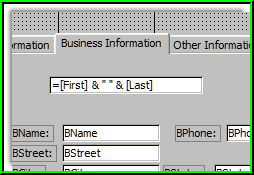
place plain old unbound TEXT BOXES on
the other pages, and set their record source to the fields you want
to display: |
|
This will display our
friend's Name at the top of Page 2 and Page 3 of our tab control,
and we should be in better shape now. |
|
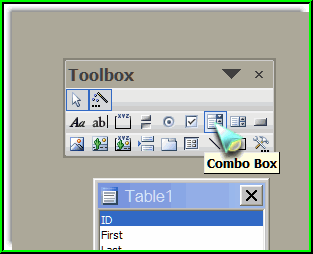
The last thing we'll do to
make our form a little more user-friendly is to place a combo box at
the top of the form, to allow us to search for records to display. I
just used the standard combo box, and placed it at the top of my
form: |
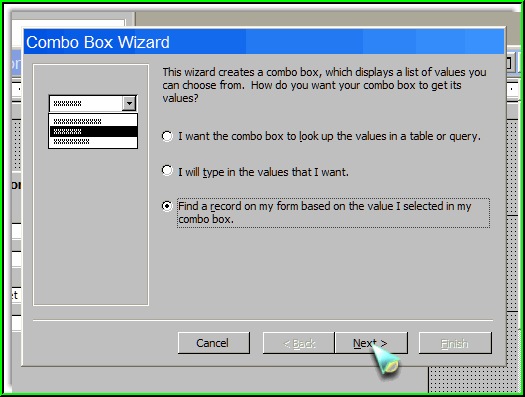
| I selected the third option here, "Find a
record on my form... |
|
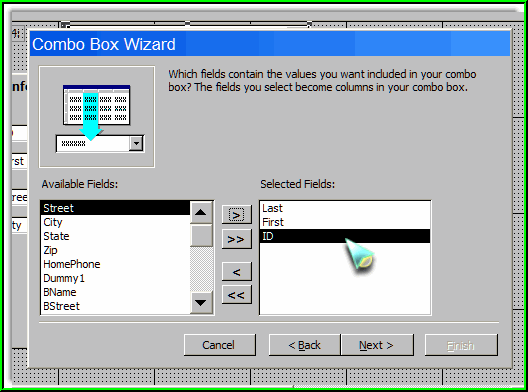
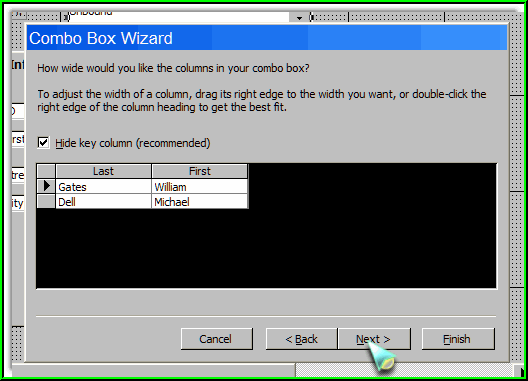
I want my combo box to display the names, last
first, and the ID number, since it's the key to the table.. |
|
Access will not show the ID
field, since it's the key, and nobody ever remembers it anyway.. |
|
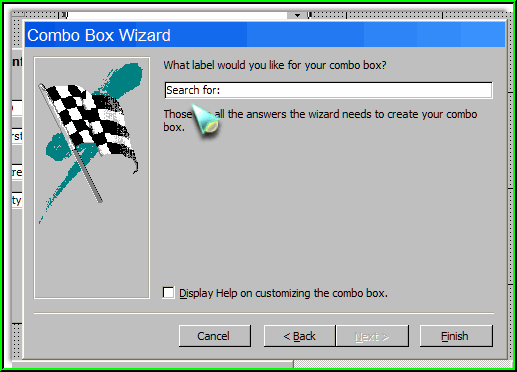
I enter an appropriate label
for my searching combo box... |
|
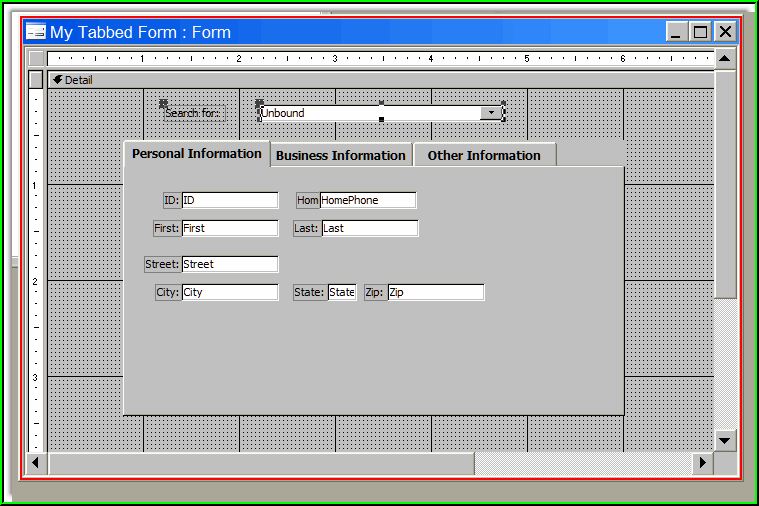
And there it is at the top
of our form: |
|
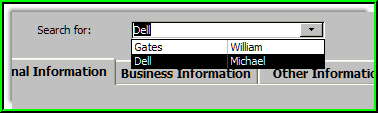
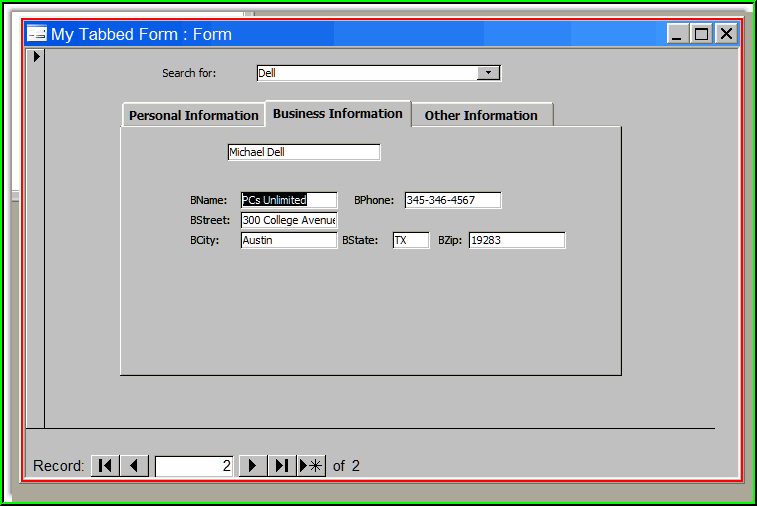
But does it work????
SURE! When I select Michael Dell, the record displays on my
tab control, in pages 1, 2 and 3, automatically! |
On to Part Four and the Conclusion
|
