|
So you'd like to put a TAB
control on a form?
|
Tab controls are one of the
least-used Access form objects, at least as far as the systems I've
seen designed by others. I have used them on occasion, and they are
very useful, in these specific circumstances:
1) You have a record with
many fields, and placing them all on one form would be troublesome,
given screen size and resolution differences ,
2) You want to be able to
visually segregate your information, so that users can just see what
pieces they need to at the time.
For example, you have a long
(many fields) record, with personal information, business
information, and maybe one or two other "types" of information, that
all relate the same. Now some designers would separate this
kind of data in to two or three or more tables, each with a
one-to-one relationship, but this is unnecessary. Just use a TAB
control on your input and data management forms.
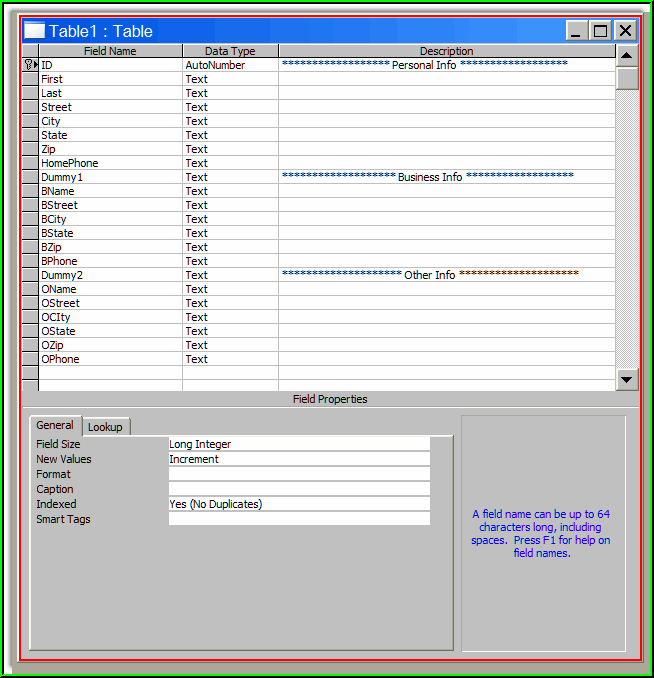
Let's assume we have a table
with information about people - we have their 'personal'
information, like name, address, phone, and so on. We also have
business information, and 'other' information. Here's a sample table
illustrating what I mean:
|
|
You can see that this information is logically
all related to the person - so there's no need to break it into
multiple tables. Your actual design may differ, so you'll have to
attack each situation somewhat differently, but you should get the
picture here.
With a record of this size, it might not be
feasible to put all the fields on one form - too much data, not
enough room, or a combination of both. In a situation like this, the
TAB control is your answer!
What follows are step-by-step instructions for
creating and using a TAB control on a form:
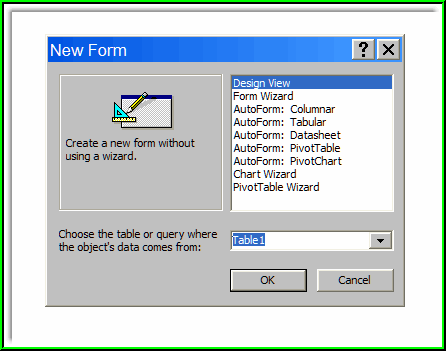
Create a NEW FORM, in DESIGN VIEW, based on your
table:
|
|
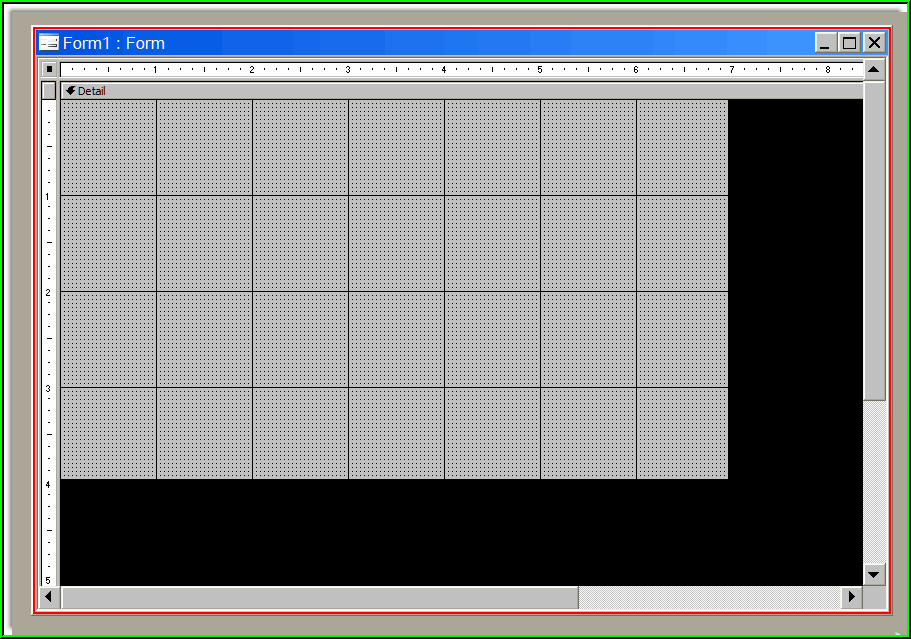
Make the form detail area about 6 or so inches
wide, and about 4 inches deep. Your needs may vary, so adjust
accordingly: |
|
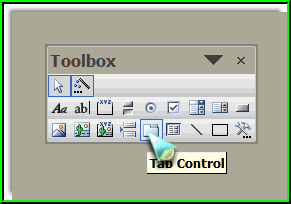
Make sure your form control toolbox is visible,
and select the TAB CONTROL sprite: |
|
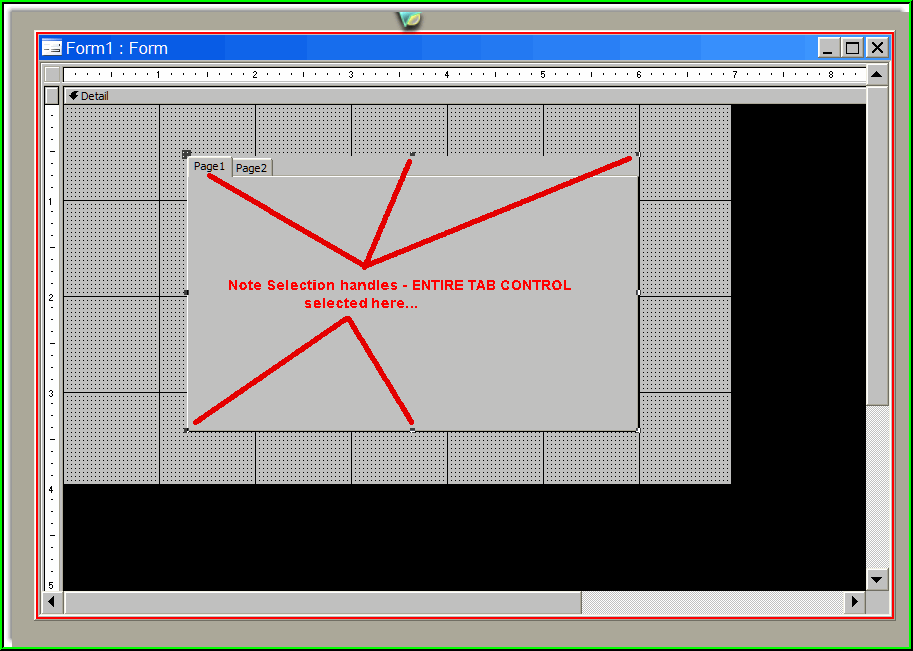
Place the blank tab control in the middle of your
form, and let's take a minute to examine it. Not the selection
handles - they are at each corner of the control and middle of each
side. |
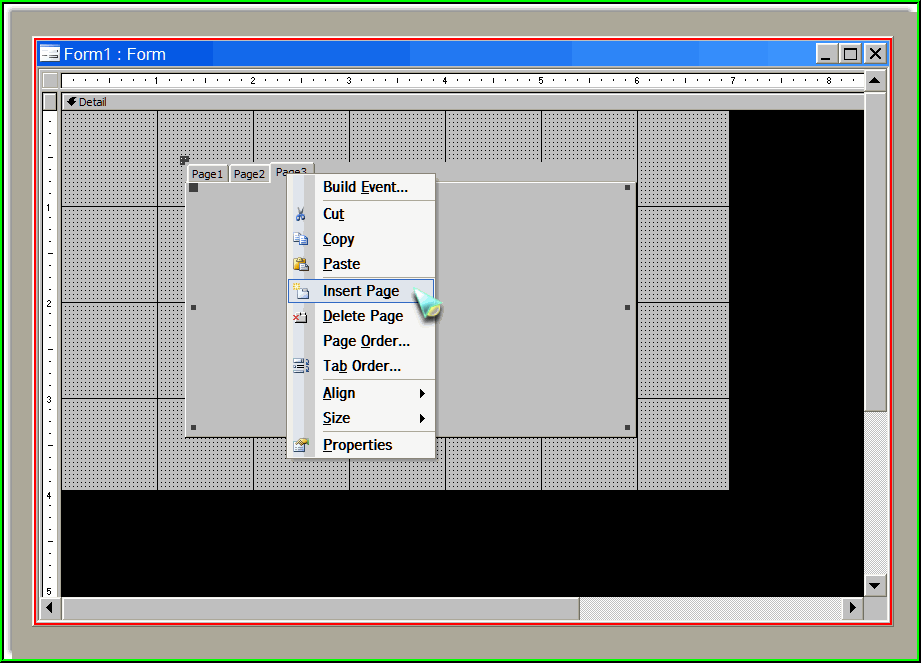
| When you first place a tab control on your form, it will have
two pages. To add more pages, simply right-click the control, and
select "INSERT PAGE" from the fly-out menu.: |
|
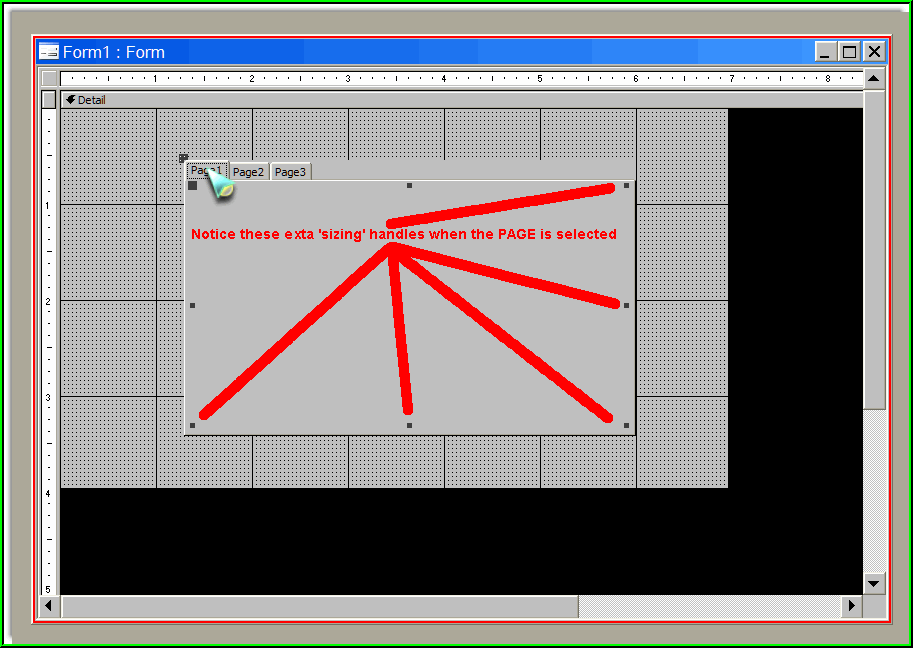
The important thing to visually recognize about a
tab control is the difference between selecting the entire tab
control, versus a specific PAGE on the control. Look at the
black boxes on the corners and sides of first tab control screen
shot - this is the 'selection' of the entire tab control.
To select a specific PAGE of the control, click the page tab area,
and the selection boxes will change, to visually illustrate that you
have selected that specific page: |
|
Is is VERY important that you learn to visually
recognize the difference between the Tab Control being selected, and
a PAGE on the control. If you place a label, text box, or other
gadget on the Tab control, it will be visible on ALL THE PAGES of
the control! So make sure you select the PAGE if you want to place
an object and have it visible only on that page! |
On to Part Two...
|
