|
|
|
Mail Merge - It's not as difficult as you think....In the classes I've taught, I've had numerous questions regarding mail merge, so I thought it might be advantageous to develop a quick tip sheet and post it on the site for anyone to use. Hopefully, this will remove some of the mystique surrounding this obscure and arcane practice.. :) Overview:Mail - Merge is the name given to the process of printing a stack of { Letters, Envelopes, Labels, What-have-you} that are all exactly alike except for specific information that varies depending on the recipient of the { Letters, Envelopes, Labels, What-have-you}. In the old days, we called these "Form Letters" - the misguided attempt at personalization that a large multinational corporation would foist off on an unsuspecting public to make you think that "J. Elmer Watchamacallit, VIce President of Account Investments" was personally thrilled to death to announce that you qualified for a reduced-rate credit card or a refinanced home mortgage or free aluminum siding or a "certified pre-owned automobile", and you'd be the envy of all your neighbors there at "1313 Mockingbird Lane" or whatnot. But we all know that YOUR form letters are much more important and are really really necessary to send out. So here's how Things you will need:
The mail merge takes each piece of individual data that you want, and shoves it in a specific spot in the main document and then prints a copy of the main document for each line in your data source. For instance, if you have 20 names and addresses, you'll get 20 documents printed. You put pieces of data, called "fields", in your document by inserting what is called a field code at a specific spot in your document. For example, if you want a letter to read
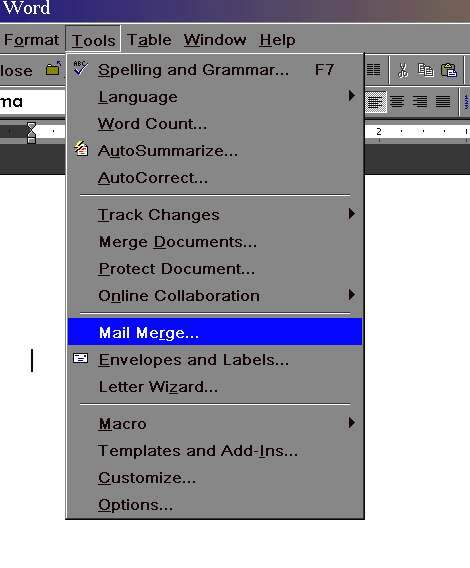
Dear Mr. Jones; Thank you for ordering our Super Turbo Oxy Power Hose Nozzle for your beautiful property there in Nagadoches, TX. you would insert field codes to represent the "Last Name", "Item-Ordered", "City", and "State" guys in your document. The process you follow varies slightly from product to product, and from version to version, but whether you use Word™, WordPerfect™, or any other product that supports mail merge, the steps are the same. In this example, we have a data source that is an Excel spreadsheet, and we will create a new document in Word that merges the name and address info from the spreadsheet into our final merged document(s). Here is an illustrated step-by-step from Word 2000: Step 1 - in Word, select the MAIL MERGE wizard from the TOOLS menu:
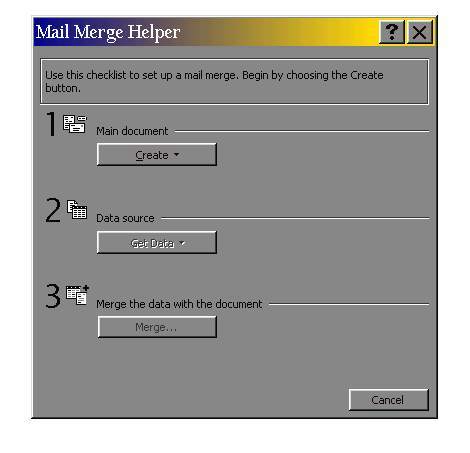
The three step process is explained:
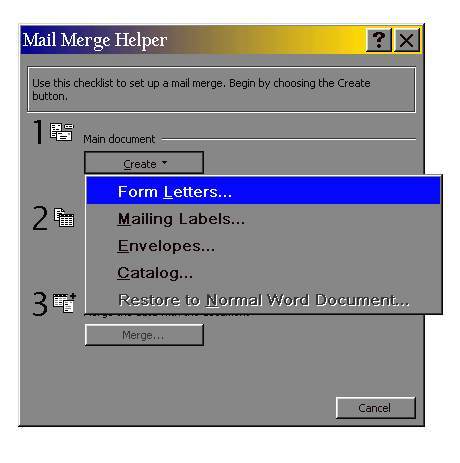
In the CREATE step, you specify WHAT you want to end up with - a letter, labels, or other stuff:
We choose FORM LETTERS, and then it's on to the next step.... Mail Merge - Step 2 |